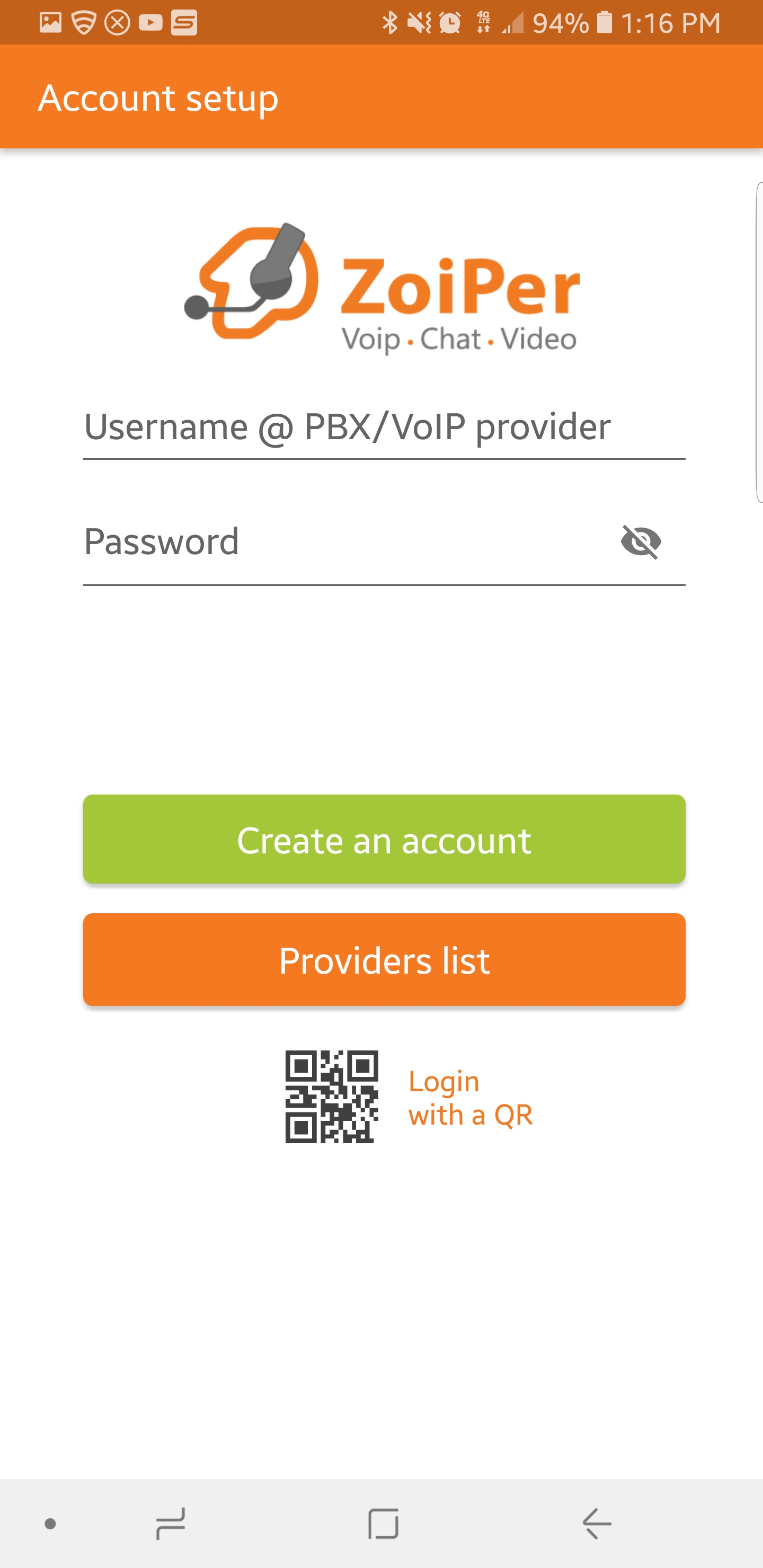
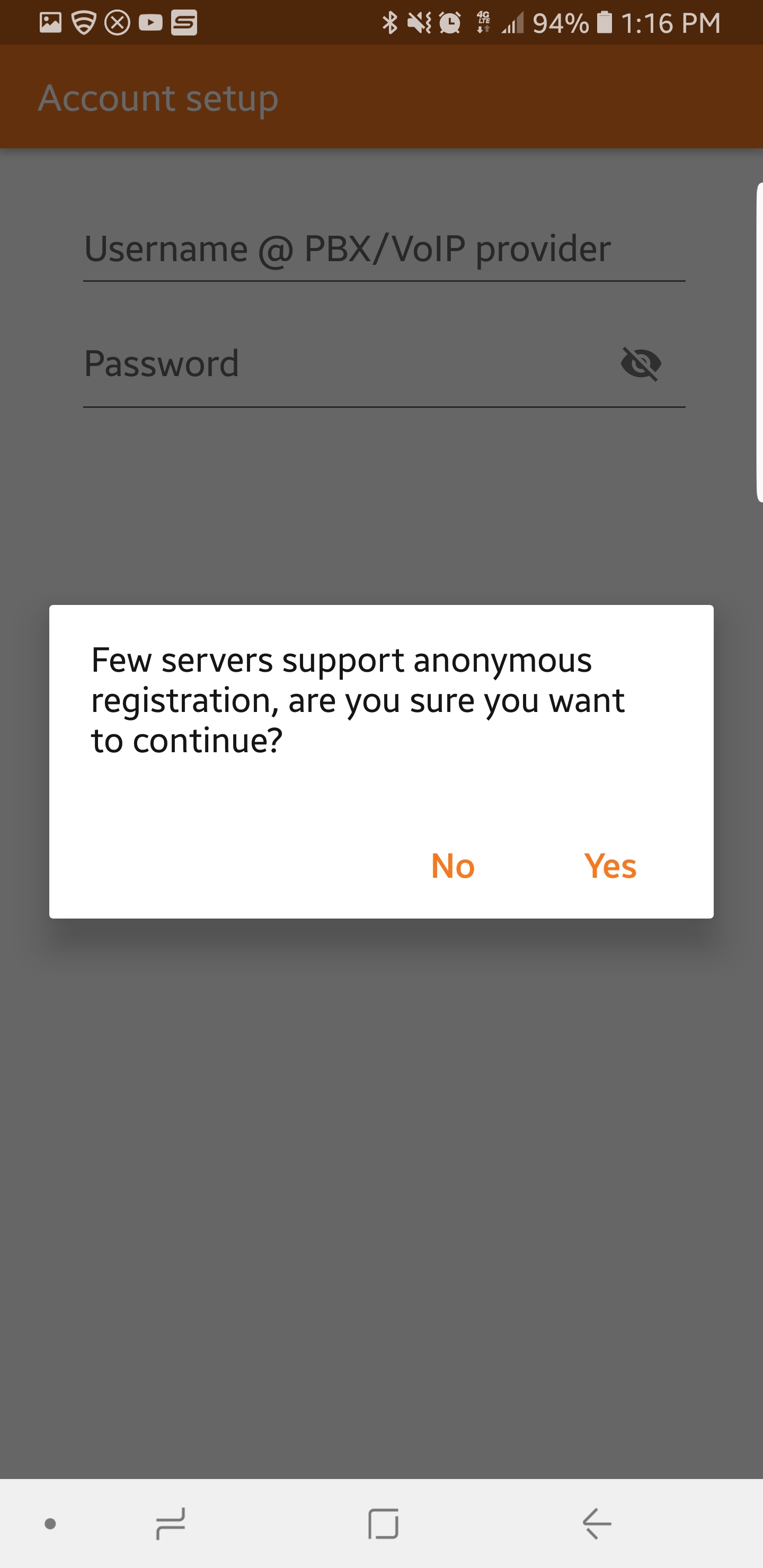
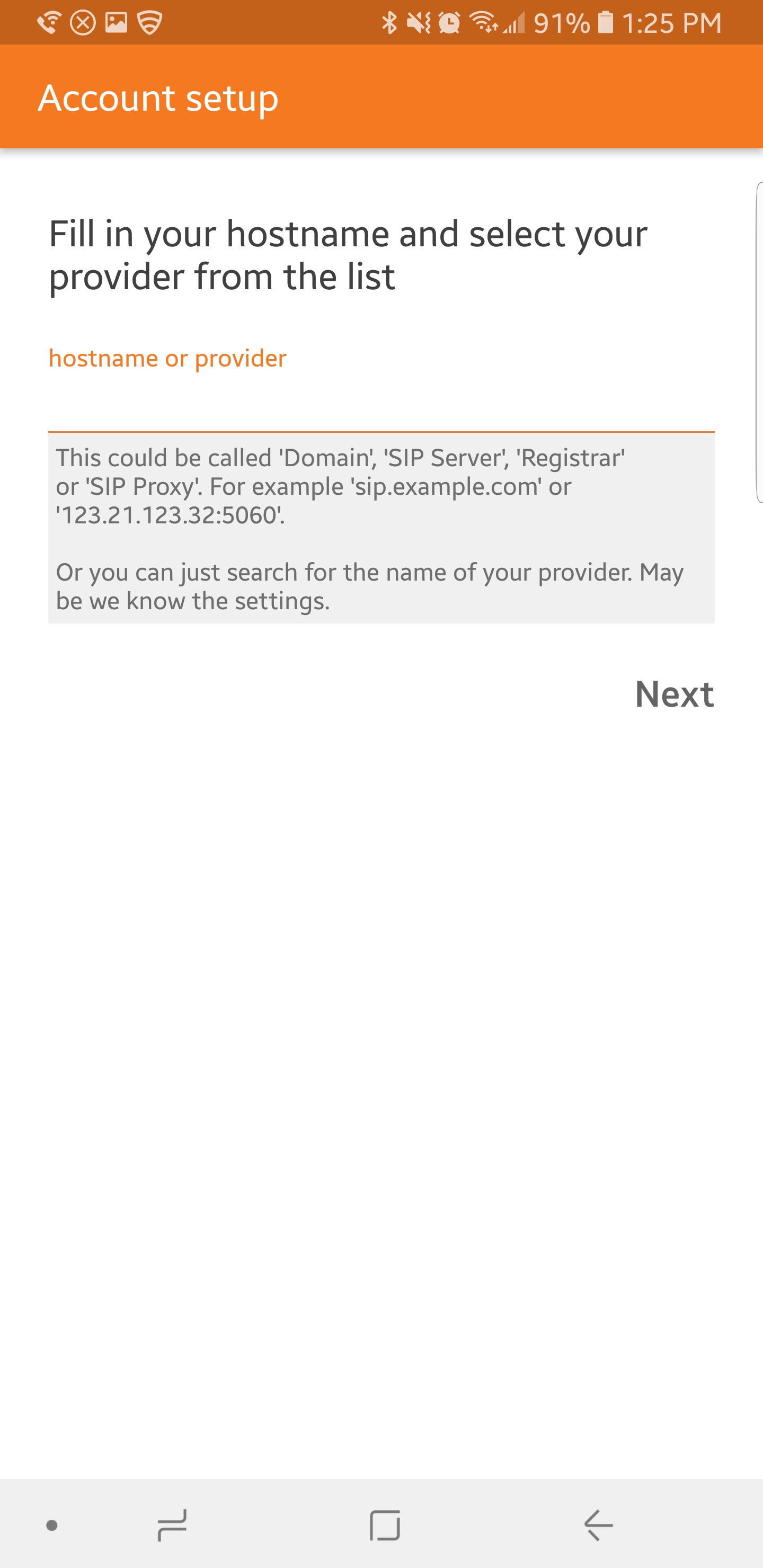
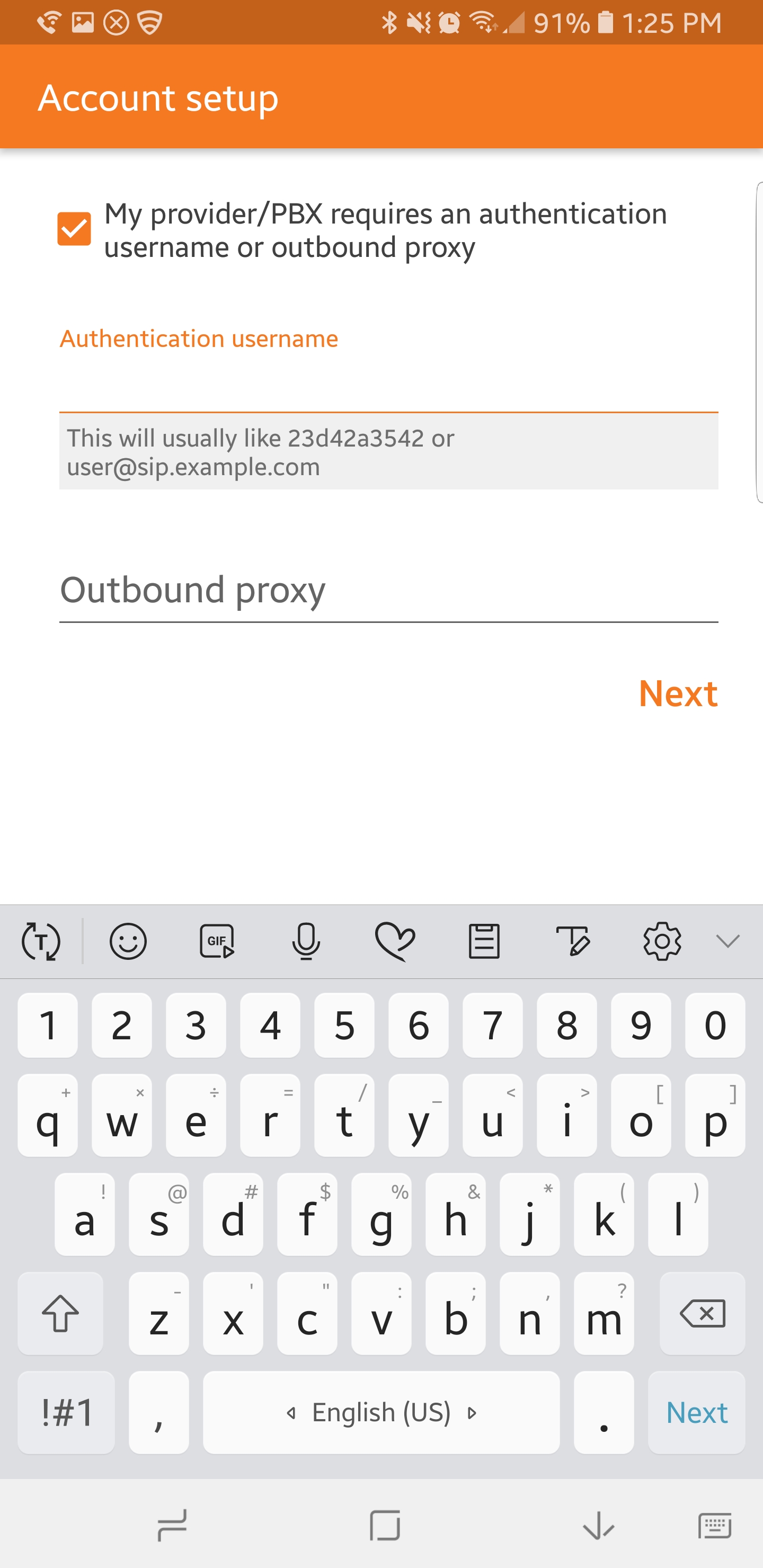
Registering Zoiper to an Android Phone
Related Articles
Zoiper Softphone for Android
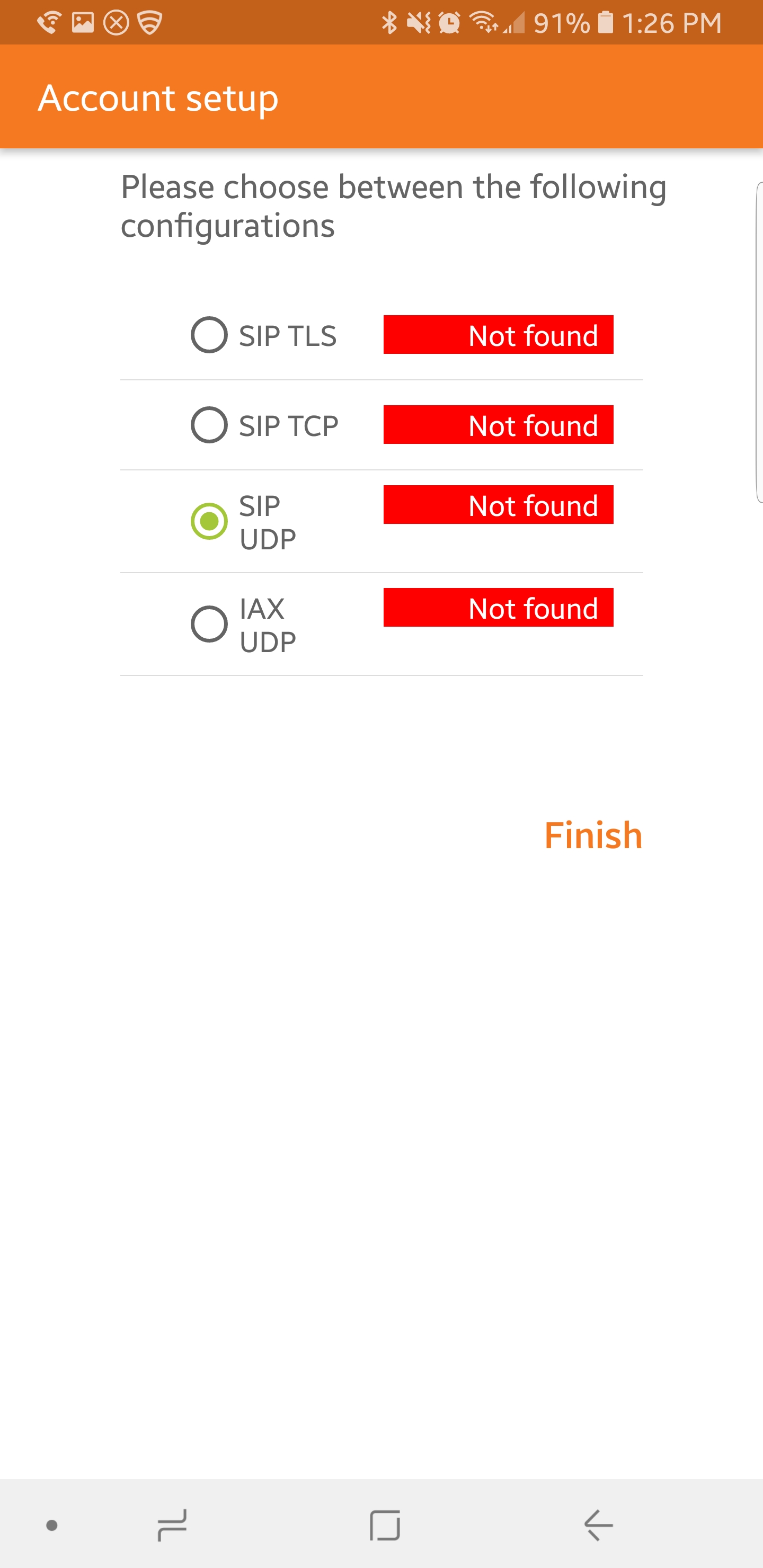
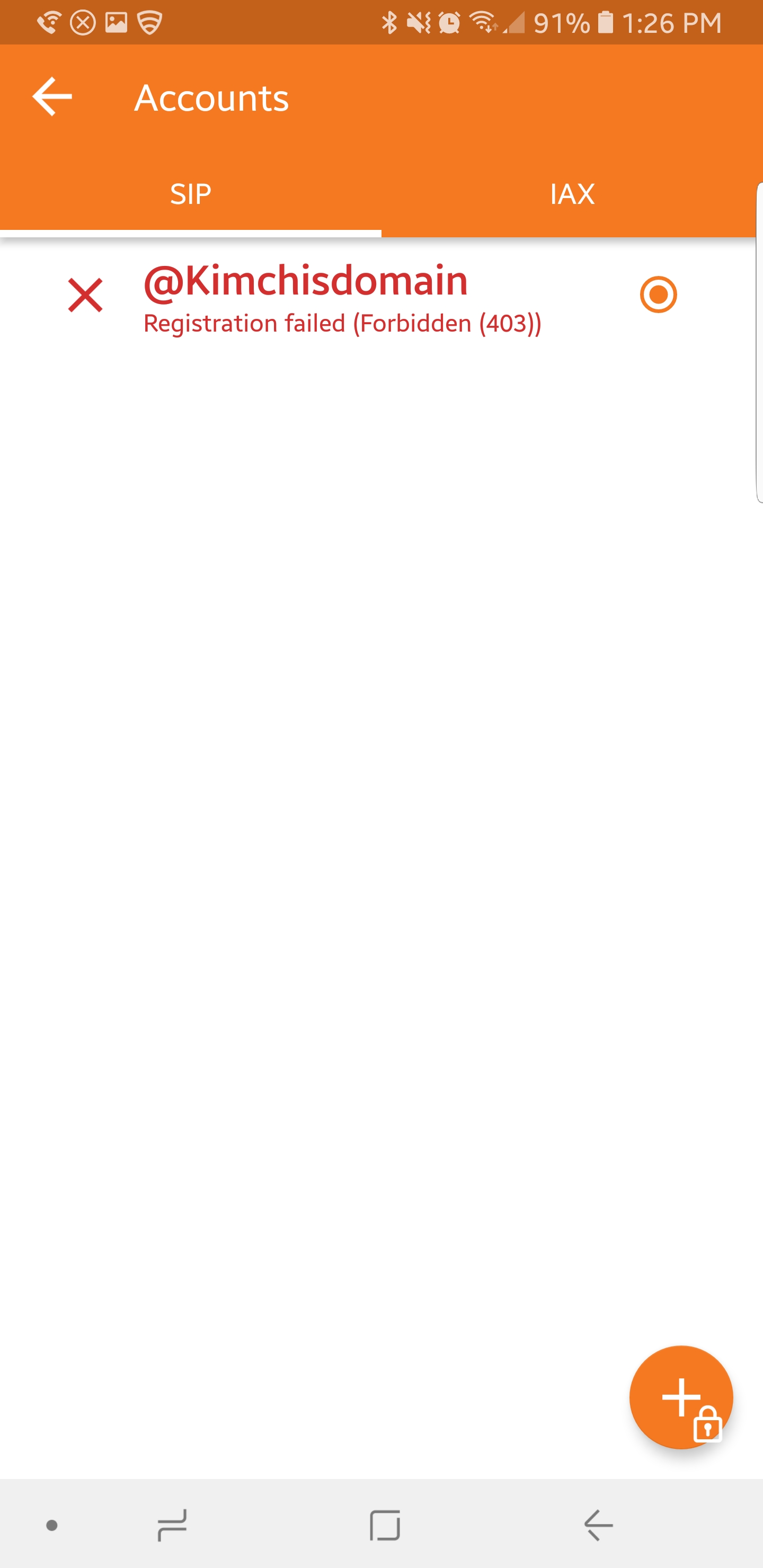
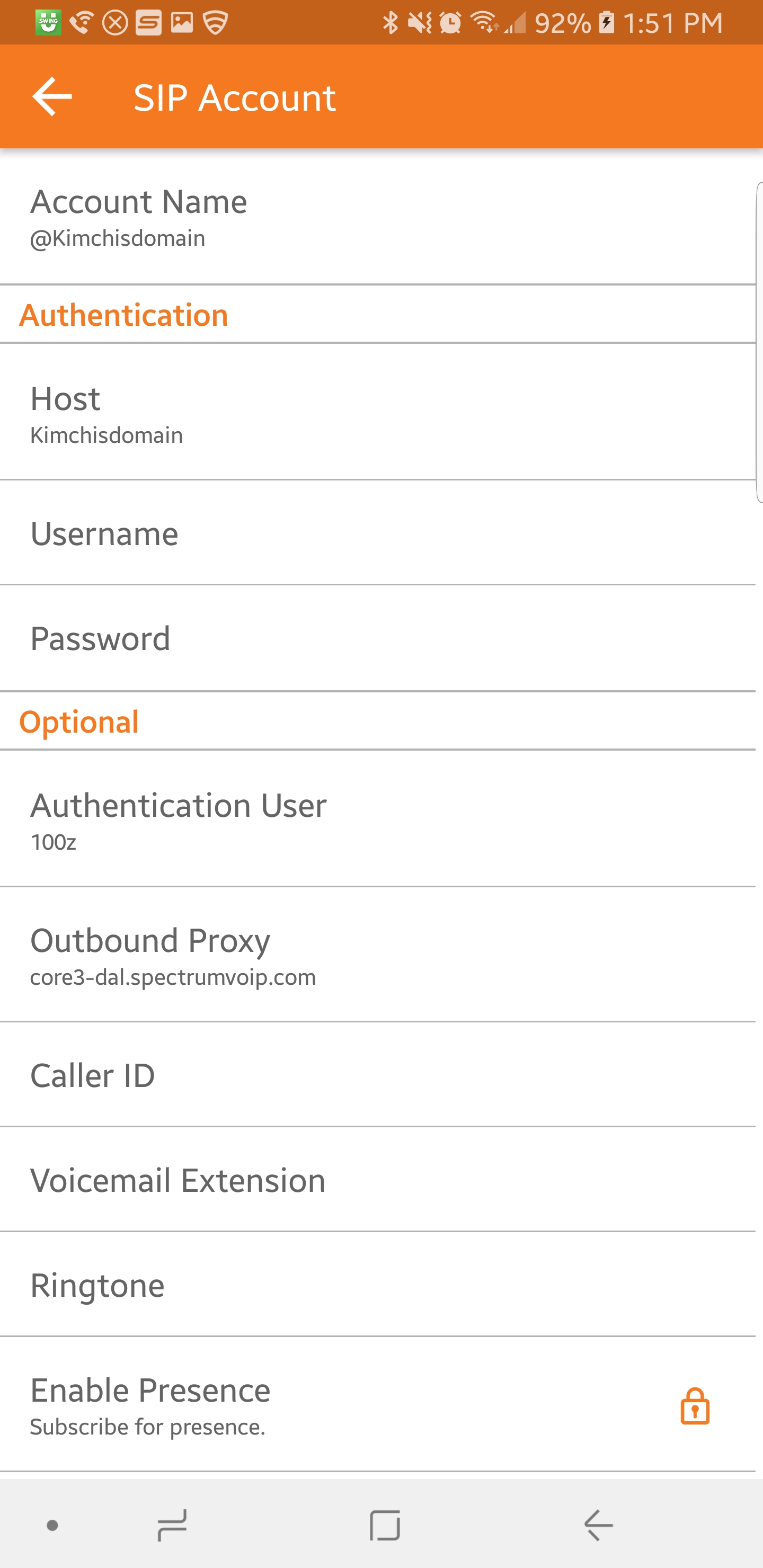
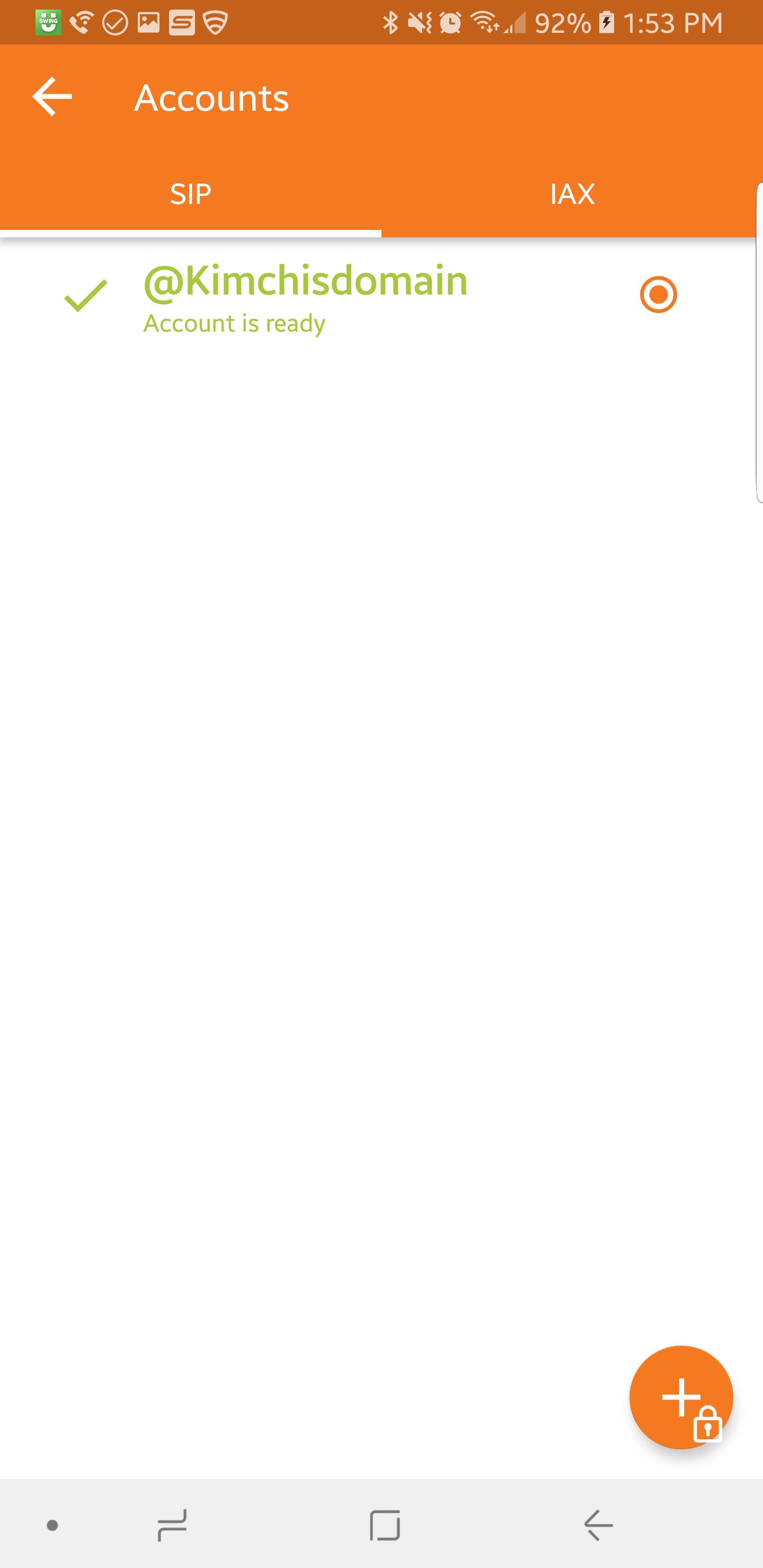
Installing the Zoiper Mobile App for Android The Zoiper Softphone app is available from the Google Play Store - Zoiper SIP Softphone For iPhone please see Enswitch - WaveLink Softphone for iPhone The following information will be required to register ...
Android - Set Up Your PrimeCall App
Requirements: To be able to log in and use the app, a Primecall username and password are required. It is recommended to install this app on mobile devices with Android version 11 or later installed. Get Started on the App Install the App Navigate ...
Android - Set Up Your PrimeCall App
Requirements: To be able to log in and use the app, an Enswitch username and password are required. It is recommended to install this app on mobile devices with Android version 11 or later installed. Get Started on the App Install the App Search your ...
Android - Record Calls Using the PrimeCall App
Record Calls on the App WARNING: Some countries and states impose laws and regulations on recording calls. We recommend requesting consent from call participants before recording any call. It may also be a good idea to have a message set up for your ...
Android - The Layout of the PrimeCall Mobile App
Overview The PrimeCall Primecall mobile app can be installed on Android mobile devices and used to handle phone calls and send messages using the Internet. This application supports the following call features: Inbound and outbound calls Call ...