User Picture - Gravatar
If you would like to have your picture displayed in the portal, then please follow the steps below.
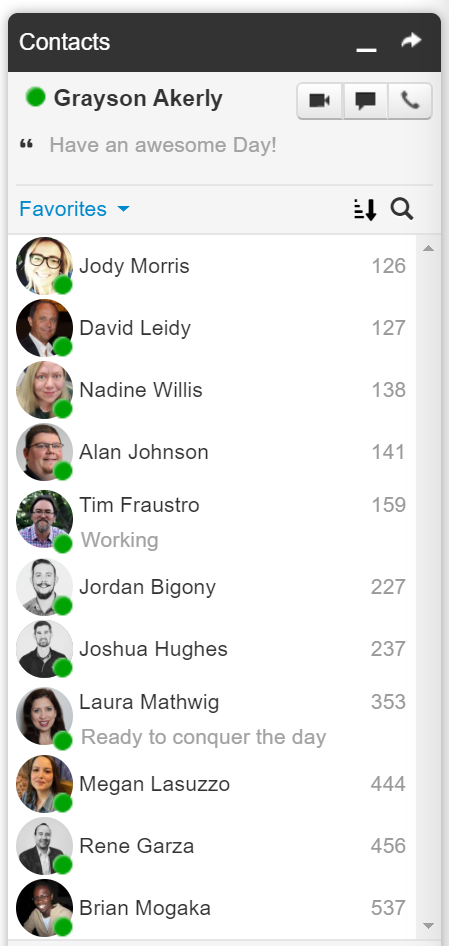
These pictures will be displayed in the portal contact pop-up, contacts list, Primecall Mobile Contacts list, Primecall Mobile Web contact list, and when you mute your video in PrimecallMEETING.
Set up Gravar Through WordPress
Gravatar is set up through WordPress. An account will need to be set up through WordPress for the image to be applied.
From WordPress: "Your Gravatar is an image that follows you from site to site appearing beside your name when you do things like comment or post on a blog. Avatars help identify your posts on blogs and web forums, so why not on any site?"
- Go to www.wordpress.com
- Click “Get Started” in the upper right corner
- Enter your email address, enter a username (you can use your email address as the username), and enter a password.
Your Email Address will need to be the same email address that is on your User Profile in Primecall.
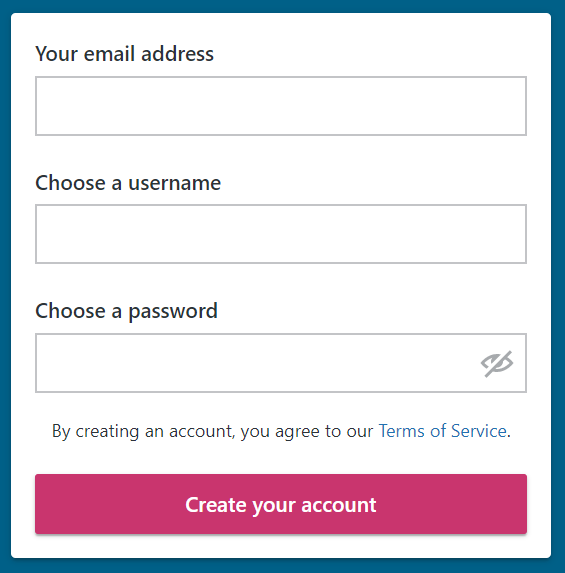
- Click “Create Your Account”
- On the next page, you will be prompted to enter a new Domain or convert an existing domain. Ignore this and just close your browser tab.
- Check your Email. You should receive an Activation confirmation email from WordPress.
- Click on the Confirm Now button in the email body.
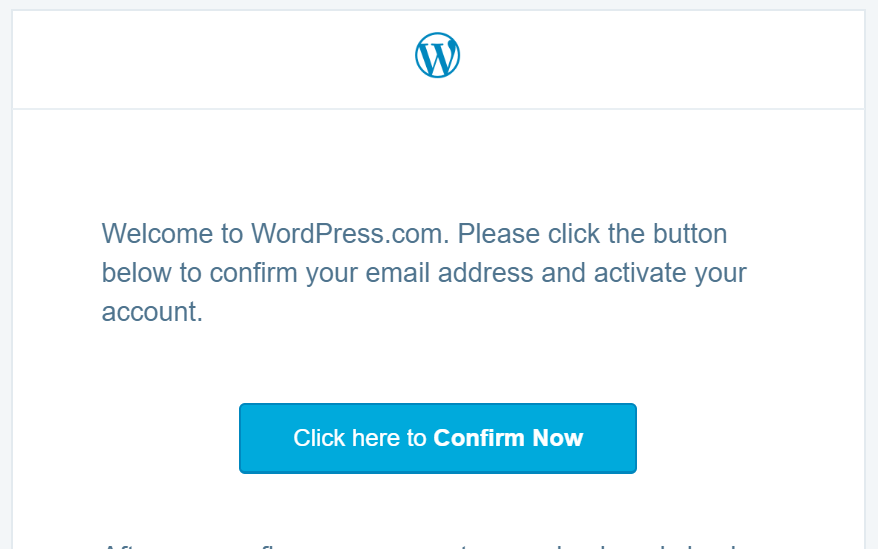
- This will take you to a new browser window/tab that will state that your email is confirmed.
- Click on the small circle in the upper right corner to manage your WordPress profile.

- Click on My Profile on the left-hand menu (it might already be selected when you first enter this area.)
- Enter your First and Last name. Then click on “Click to change photo” next to the First and Last Name fields.
- Select a picture from your computer and scale it to fit in the circle.
- Click “Change My Picture.”
- Click the red box titled “Save profile details” to finish.
PrimeCall is not affiliated with WordPress.
Related Articles
PrimeCall Desktop App Comprehensive User Guide
Access the App The Primecall App can be found at app.primecall .com on your web browser. Quick Tip: This browser can be Google Chrome or another Chromium-based web browser like Chromium, Microsoft Edge, Brave, or Opera. Download the App While the ...Voicemail User Guide
Accessing Voicemail Settings Most functions in this article require you to access your Voicemail Settings. There are three ways to do so, each for a different means of access. Access via one of your assigned devices. These are devices that are ...Yealink W56H User Guide
Handset Components Button Name Function 1 Receiver Receives audio in receiver mode. 2 Power Indicator LED Indicates call status, message status and charging status. 3 LCD Screen Shows information. 4 Soft Keys Depending on the status of the phone, the ...Yealink W56H User Guide
Handset Components Button Name Function 1 Receiver Receives audio in receiver mode. 2 Power Indicator LED Indicates call status, message status and charging status. 3 LCD Screen Shows information. 4 Soft Keys Depending on the status of the phone, the ...User Scopes for Primecall Users
User Scopes A user's view of the portal and the settings they can adjust are determined by their User Scope. These scopes have pre-defined names and privileges. Office Managers, Site Manager, and Call Center Supervisor have more flexibility regarding ...